Quick Start
Get started with Duckling in 5 minutes.
Starting the Application
Choose your preferred method:
The fastest way to get started - no dependencies to install!
Option 1: Pre-built Images (Fastest)
# Download the compose file
curl -O https://raw.githubusercontent.com/davidgs/duckling/main/docker-compose.prebuilt.yml

# Start Duckling
docker-compose -f docker-compose.prebuilt.yml up -d
Option 2: Build Locally
# Clone and start
git clone https://github.com/davidgs/duckling.git
cd duckling
docker-compose up --build
The UI will be available at http://localhost:3000
First Run
The first startup may take a few minutes as Docker downloads/builds the images.
Your First Conversion
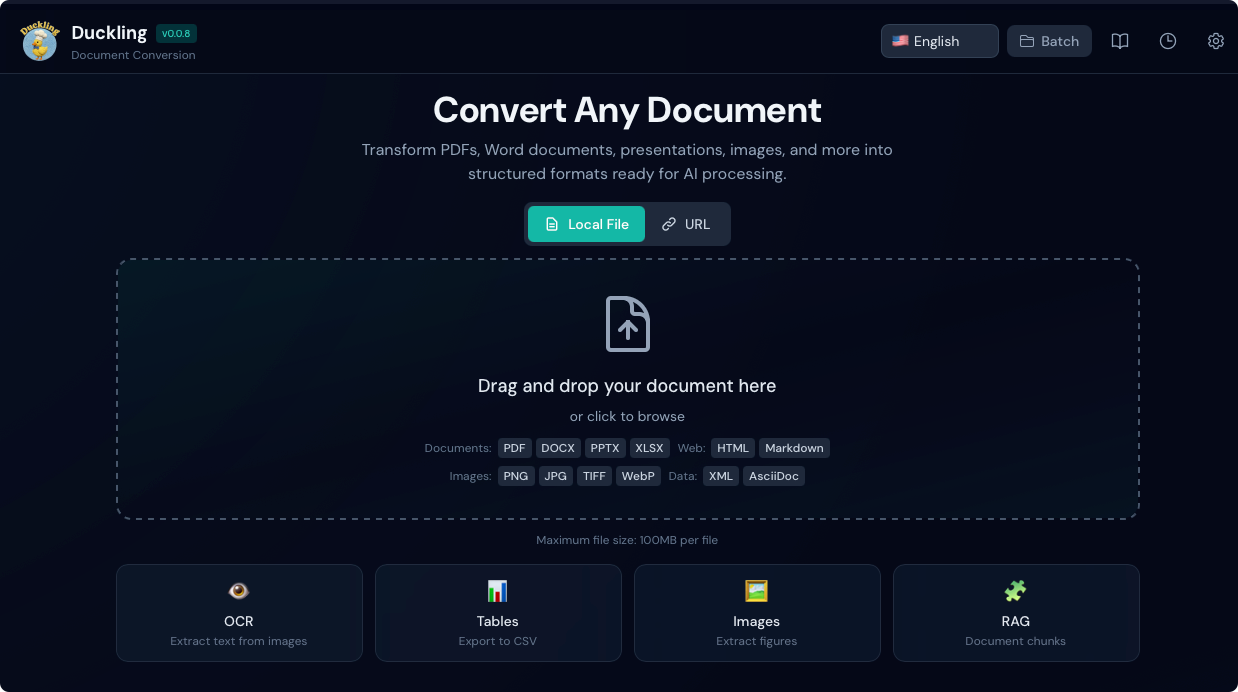
1. Open the Application
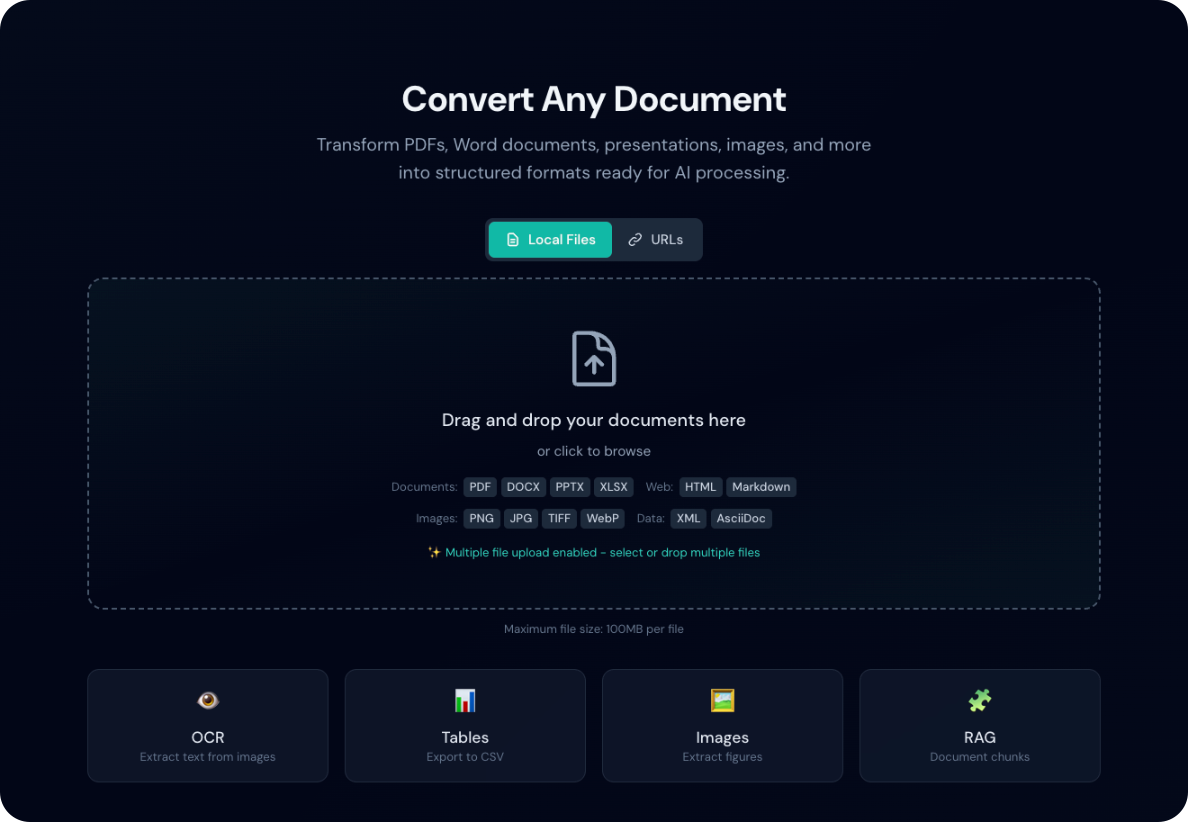
Navigate to http://localhost:3000 in your browser.
2. Upload a Document
Drag and drop a PDF, Word document, or image onto the drop zone, or click to browse.
3. Watch the Progress
The conversion progress will be displayed in real-time.
4. Download Results
Once complete, choose your export format:
- Markdown - Great for documentation
- HTML - Web-ready output
- JSON - Full document structure
- Plain Text - Simple text extraction
Basic Configuration
Click the Settings button to configure:
OCR Settings
| Setting | Default | Description |
|---|---|---|
| Enabled | true | Enable OCR for scanned documents |
| Backend | easyocr | OCR engine to use |
| Language | en | Primary language |
Table Settings
| Setting | Default | Description |
|---|---|---|
| Enabled | true | Extract tables from documents |
| Mode | accurate | Detection accuracy level |
Image Settings
| Setting | Default | Description |
|---|---|---|
| Extract | true | Extract embedded images |
| Scale | 1.0 | Image output scale |
Batch Processing
To convert multiple files at once:
- Toggle Batch Mode in the header
- Drag multiple files onto the drop zone
- All files will be processed simultaneously
Performance
Batch processing uses a job queue with a maximum of 2 concurrent conversions to prevent memory exhaustion.
Using the API
For programmatic access, use the REST API:
# Upload and convert a document
curl -X POST http://localhost:5001/api/convert \
  -F "file=@document.pdf"

# Response
{
  "job_id": "550e8400-e29b-41d4-a716-446655440000",
  "status": "processing"
}
Check the API Reference for complete documentation.
Next Steps
- Features - Explore all capabilities
- Configuration - Advanced settings
- API Reference - Integrate with your apps