Quick Start
Get started with Duckling in 5 minutes.
Starting the Application
Choose your preferred method:
The fastest way to get started - no dependencies to install!
Option 1: Pre-built Images (Fastest)
# Download the compose file
curl -O https://raw.githubusercontent.com/davidgs/duckling/main/docker-compose.prebuilt.yml

# Start Duckling
docker-compose -f docker-compose.prebuilt.yml up -d
Option 2: Build Locally
# Clone and start
git clone https://github.com/davidgs/duckling.git
cd duckling
docker-compose up --build
The UI will be available at http://localhost:3000
First Run
The first startup may take a few minutes as Docker downloads/builds the images.
Your First Conversion
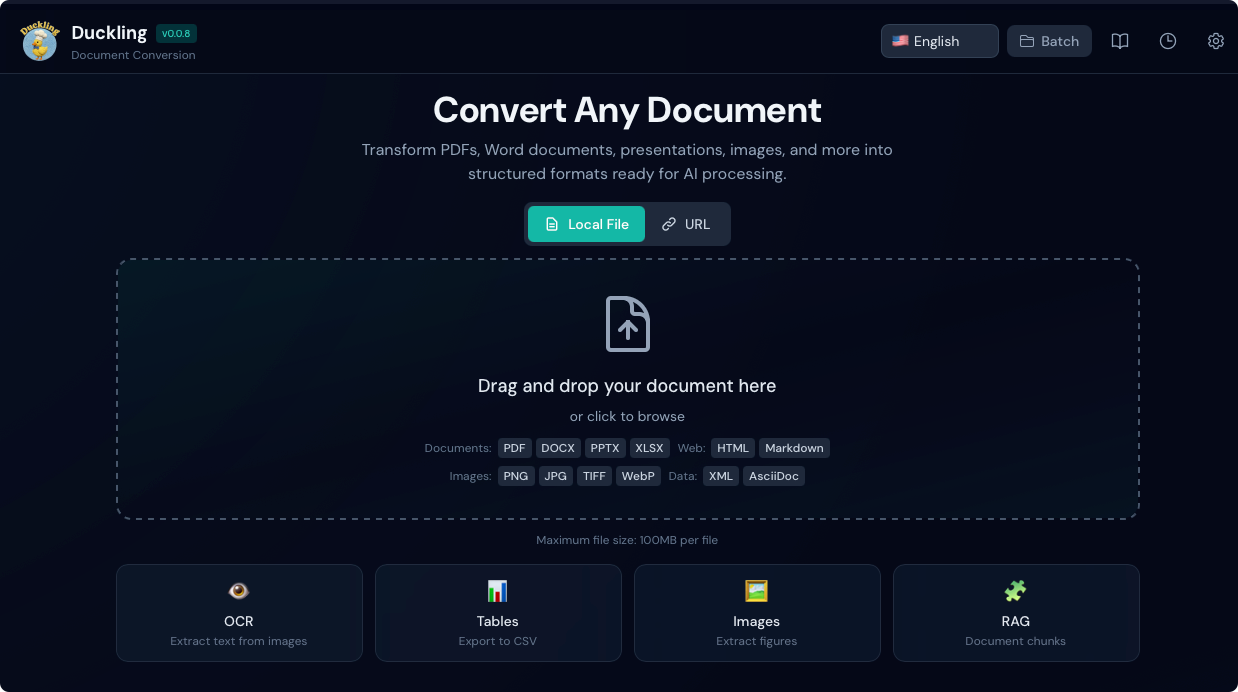
1. Open the Application
Navigate to http://localhost:3000 in your browser.
2. Upload a Document
Drag and drop a PDF, Word document, or image onto the drop zone, or click to browse.
3. Watch the Progress
The conversion progress will be displayed in real-time.
4. Download Results
Once complete, choose your export format:
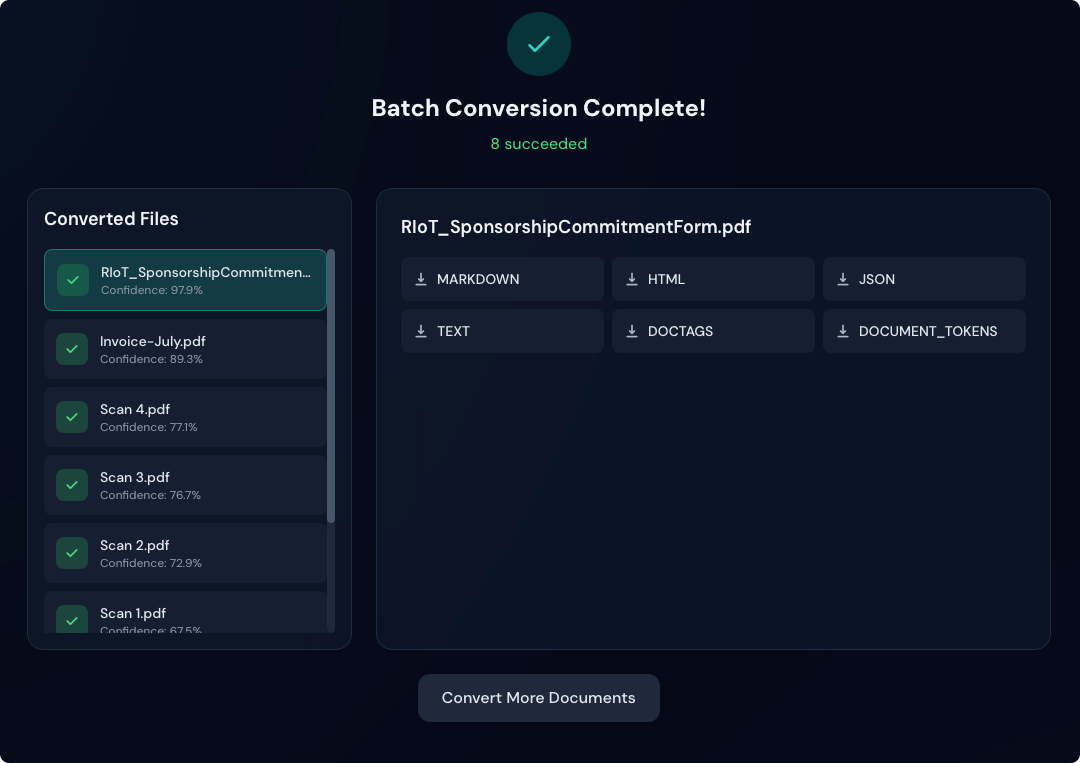
- Markdown - Great for documentation
- HTML - Web-ready output
- JSON - Full document structure
- Plain Text - Simple text extraction
Basic Configuration
Click the Settings button to configure:
OCR Settings
| Setting | Default | Description |
|---|---|---|
| Enabled | true | Enable OCR for scanned documents |
| Backend | easyocr | OCR engine to use |
| Language | en | Primary language |
Table Settings
| Setting | Default | Description |
|---|---|---|
| Enabled | true | Extract tables from documents |
| Mode | accurate | Detection accuracy level |
Image Settings
| Setting | Default | Description |
|---|---|---|
| Extract | true | Extract embedded images |
| Scale | 1.0 | Image output scale |
Batch Processing
To convert multiple files at once:
- Drag and drop multiple files or a whole folder onto the drop zone. The browser expands a folder into its files; Duckling queues every supported document (unsupported types are skipped).
- Click the drop zone to open a folder picker and upload all supported files inside that folder at once.
- Use Choose files… when you want to pick individual files only (not folder mode).
All queued files are processed according to the job queue (see Features for concurrent limits).
Performance
Batch processing uses a job queue with a maximum of 2 concurrent conversions to prevent memory exhaustion.
Using the API
For programmatic access, use the REST API:
# Upload and convert a document
curl -X POST http://localhost:5001/api/convert \
  -F "file=@document.pdf"

# Response
{
  "job_id": "550e8400-e29b-41d4-a716-446655440000",
  "status": "processing"
}
Check the API Reference for complete documentation.
Next Steps
- Features - Explore all capabilities
- Configuration - Advanced settings
- API Reference - Integrate with your apps