Features
Duckling provides a comprehensive set of features for document conversion.
Document Upload
Drag-and-Drop
Simply drag files onto the drop zone for instant upload. The interface validates file types and shows upload progress.
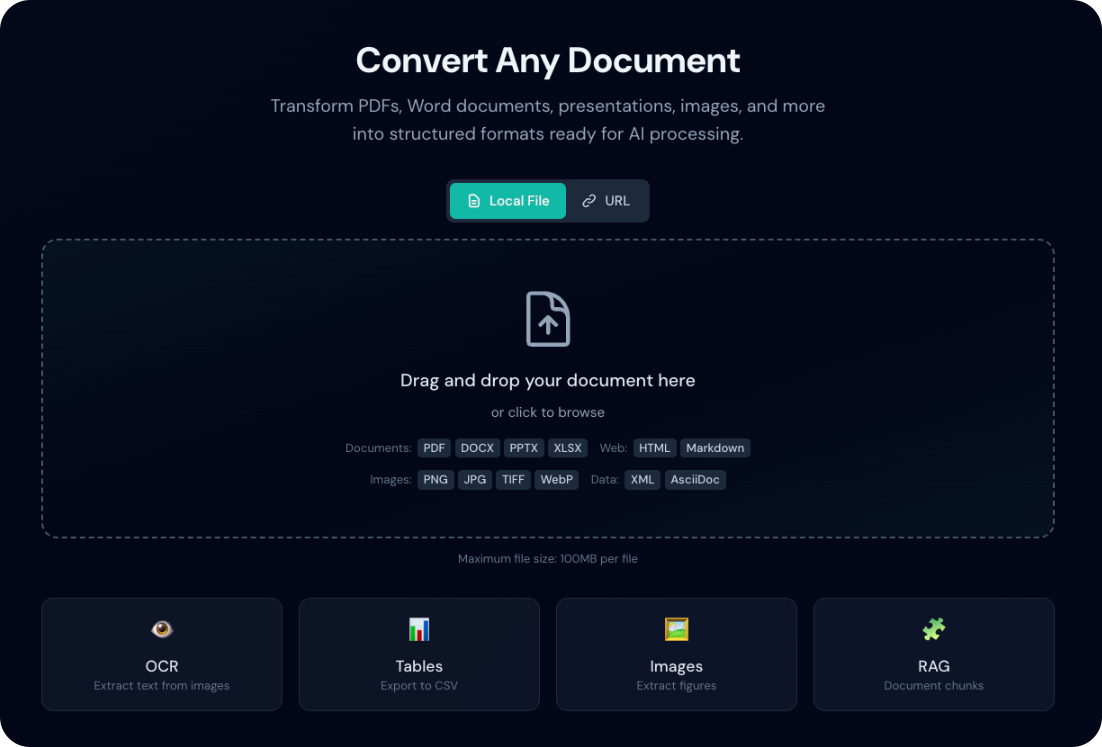
URL Input
Convert documents directly from URLs without downloading them first:
- Click the URLs toggle button above the drop zone
- Enter a document URL (must be HTTP or HTTPS)
- Click Convert or press Enter
- The document is downloaded and converted automatically
Supported URL features:
- Automatic file type detection from URL path
- Content-Type header detection for files without extensions
- Content-Disposition header support for filename extraction
- Same file type restrictions as local uploads
- Automatic image extraction for HTML pages: When converting HTML from URLs, Duckling automatically downloads all images referenced in the page and makes them available in the Image Preview Gallery
HTML Pages with Images
When you convert an HTML page (like a blog post or article), Duckling will:
- Download the HTML content
- Find all
<img>tags and CSS background images - Download each image from its source URL
- Embed the images as base64 data URIs in the HTML
- Save the images separately for preview and download
This ensures that converted HTML documents include all their images, even when viewed offline.
Direct Links
Use direct download links, not web page URLs. For example:
- ✅
https://example.com/document.pdf - ✅
https://example.com/blog/article(HTML pages work too!) - ❌
https://example.com/view/document(JavaScript-rendered content may not work)
Batch Processing
Toggle batch mode to upload and convert multiple files at once:
- Click Batch Mode toggle in the header
- Drag multiple files onto the drop zone, or switch to URL mode and enter multiple URLs (one per line)
- Monitor individual progress for each file
- Download results separately or together
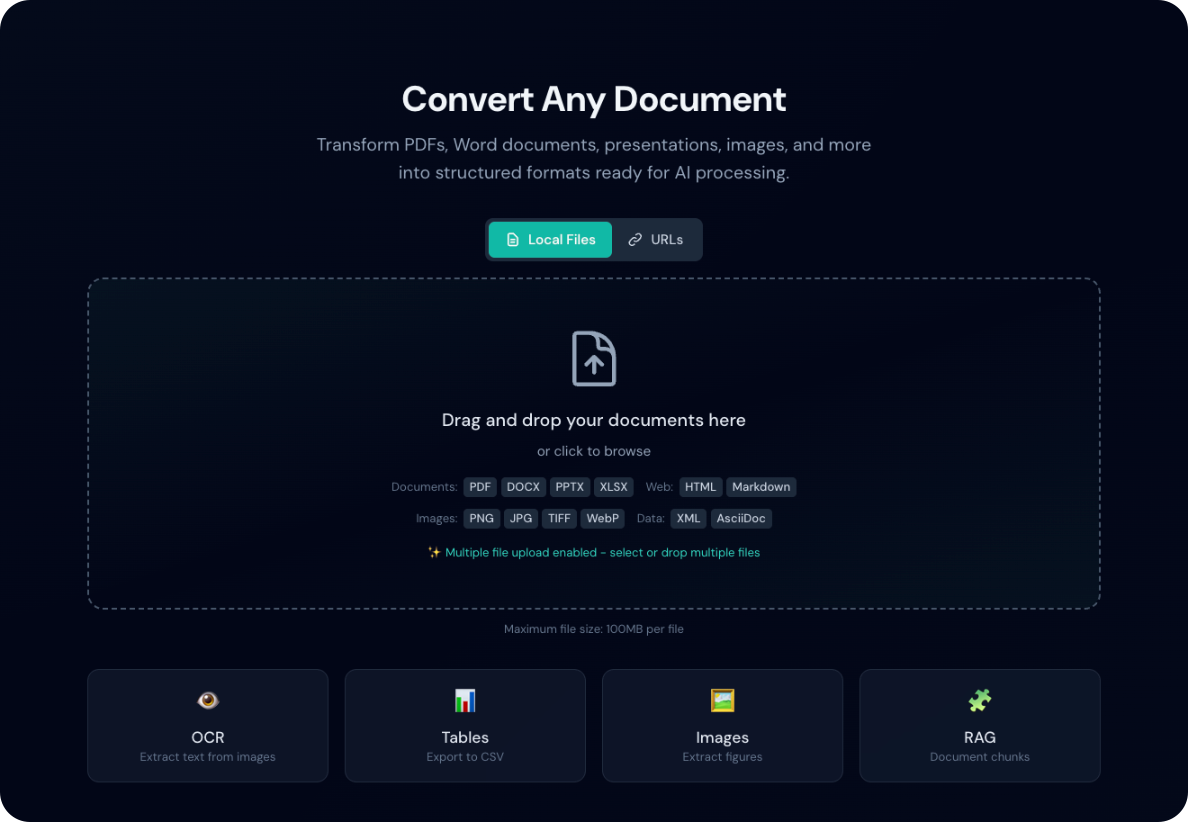
Batch URL Mode
In batch mode, the URL input changes to a multi-line textarea:
- Enable Batch Mode in the header
- Switch to URLs input mode
- Paste multiple URLs, one per line
- Click Convert All
Concurrent Processing
The job queue processes up to 2 documents simultaneously to prevent memory exhaustion.
OCR (Optical Character Recognition)
Extract text from scanned documents and images.
Supported Backends
| Backend | Description | GPU Support | Best For |
|---|---|---|---|
| EasyOCR | Multi-language, accurate | Yes (CUDA) | Complex documents |
| Tesseract | Classic, reliable | No | Simple documents |
| macOS Vision | Native Apple OCR | Apple Neural Engine | Mac users |
| RapidOCR | Fast, lightweight | No | Speed-critical |
Automatic Backend Installation
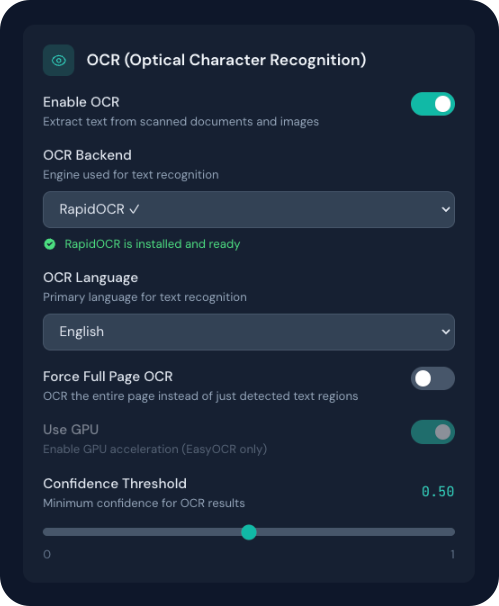
Duckling can automatically install OCR backends when you select them:
- Open Settings panel
- Select an OCR backend from the dropdown
- If the backend is not installed, you'll see an Install button
- Click to automatically install via pip
Installation Requirements
- EasyOCR, OcrMac, RapidOCR: Can be installed automatically via pip
- Tesseract: Requires system-level installation first:
- macOS:
brew install tesseract - Ubuntu/Debian:
apt-get install tesseract-ocr - Windows: Download from GitHub releases
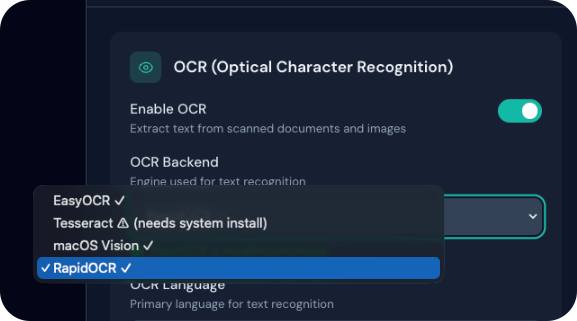
The Settings panel shows the status of each backend:
- ✓ Installed and ready - Backend is available for use
- ⚠ Not installed - Click to install (pip-installable backends)
- ℹ Requires system installation - Follow manual installation instructions
Language Support
28+ languages including:
- European: English, German, French, Spanish, Italian, Portuguese, Dutch, Polish, Russian
- Asian: Japanese, Chinese (Simplified/Traditional), Korean, Thai, Vietnamese
- Middle Eastern: Arabic, Hebrew, Turkish
- South Asian: Hindi
OCR Options
| Option | Description |
|---|---|
| Force Full Page OCR | Process entire page vs detected regions |
| GPU Acceleration | Use CUDA for faster processing (EasyOCR) |
| Confidence Threshold | Minimum confidence for results (0-1) |
| Bitmap Area Threshold | Minimum area ratio for bitmap OCR |
Table Extraction
Automatically detect and extract tables from documents.
Detection Modes
- Higher precision detection
- Better cell boundary recognition
- Slower processing
- Recommended for complex tables
- Faster processing
- Good for simple tables
- May miss complex structures
Export Options
- CSV: Download individual tables as CSV files
- Image: Download table as PNG image
- JSON: Full table structure in API response
Image Extraction
Extract embedded images from documents.
Options
| Option | Description |
|---|---|
| Extract Images | Enable image extraction |
| Classify Images | Tag images (figure, picture, etc.) |
| Generate Page Images | Create images of each page |
| Generate Picture Images | Extract pictures as files |
| Generate Table Images | Extract tables as images |
| Image Scale | Output scale factor (0.1x - 4.0x) |
Image Preview Gallery
After conversion, extracted images are displayed in a visual gallery:
- Thumbnail Grid: View all images as thumbnails in a responsive grid
- Hover Actions: Quick access to view and download buttons on hover
- Lightbox Viewer: Click any image to view full-size in a modal
- Navigation: Use arrow buttons to browse through multiple images
- Download: Download individual images directly from the gallery or lightbox
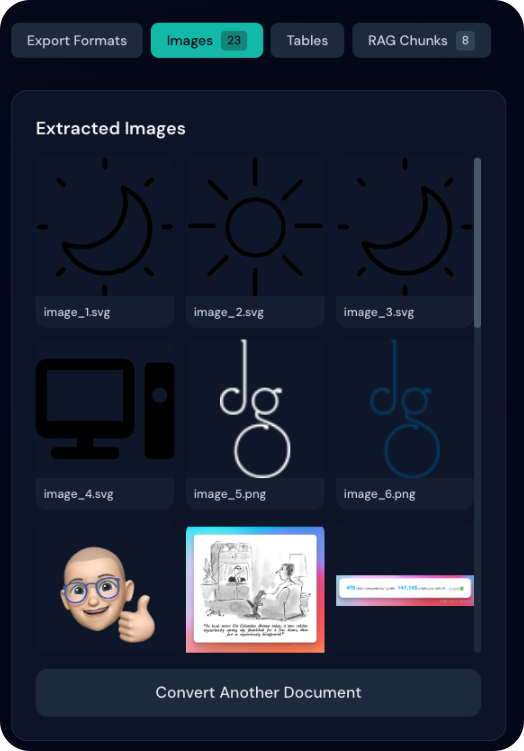
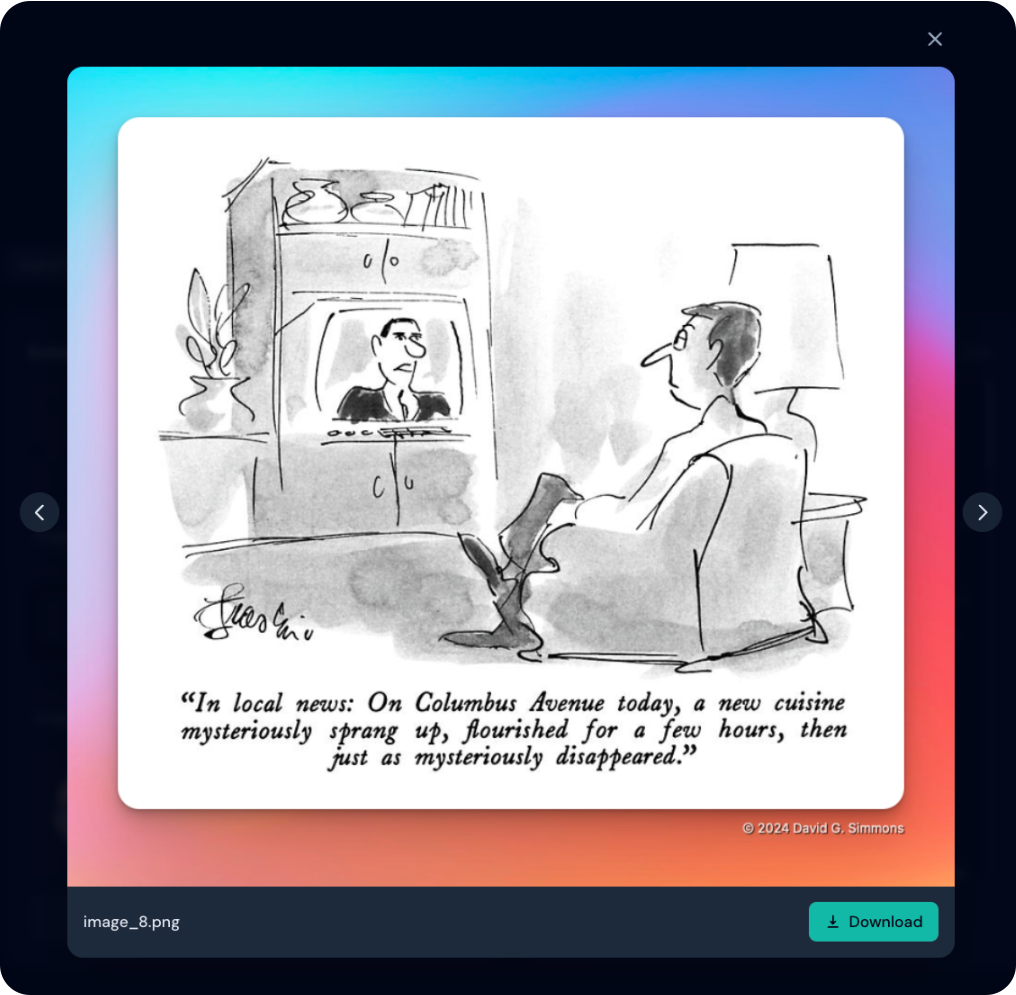
Image Formats
All extracted images are saved as PNG format for maximum compatibility.
Document Enrichment
Enhance your converted documents with advanced AI-powered features.
Available Enrichments
| Feature | Description | Impact |
|---|---|---|
| Code Enrichment | Detect programming languages and enhance code blocks | Low |
| Formula Enrichment | Extract LaTeX from mathematical equations | Medium |
| Picture Classification | Classify images (figure, chart, diagram, photo) | Low |
| Picture Description | Generate AI captions for images | High |
Configuration
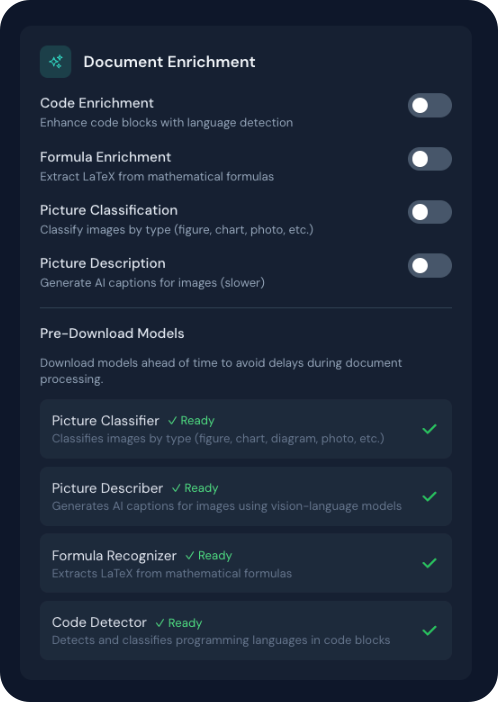
Enable enrichments in the Settings panel under Document Enrichment:
- Open Settings (gear icon)
- Scroll to "Document Enrichment" section
- Toggle desired features on/off
- Settings are saved automatically
Processing Time
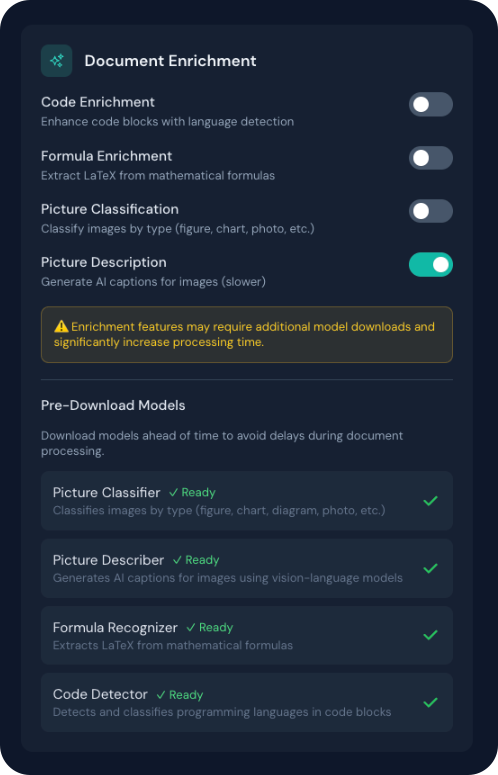
Enrichment features, especially Picture Description and Formula Enrichment, can significantly increase processing time as they require additional AI model inference. A warning is displayed when these features are enabled.
Code Enrichment
When enabled, code blocks in your documents are enhanced with:
- Automatic programming language detection
- Syntax highlighting metadata
- Improved code structure recognition
Formula Enrichment
Extracts mathematical formulas and converts them to LaTeX:
- Inline equations:
$E = mc^2$ - Display equations with proper formatting
- Better rendering in HTML and Markdown exports
Picture Classification
Automatically tags images with semantic types:
- Figure: Diagrams, illustrations, schematics
- Chart: Bar charts, line graphs, pie charts
- Photo: Photographs, screenshots
- Logo: Brand logos, icons
- Table: Table images (separate from table extraction)
Picture Description
Uses vision-language AI models to generate descriptive captions:
- Natural language descriptions of image content
- Useful for accessibility (alt text)
- Enhances searchability of documents
- Requires model download on first use
Model Requirements
Picture Description requires downloading a vision-language model (~1-2GB). This happens automatically on first use but may take several minutes.
Pre-Downloading Models
To avoid delays during document processing, you can pre-download enrichment models:
- Open Settings panel
- Scroll to Document Enrichment section
- Find the Pre-Download Models area at the bottom
- Click Download next to any model you want to pre-download
| Model | Size | Purpose |
|---|---|---|
| Picture Classifier | ~350MB | Image type classification |
| Picture Describer | ~2GB | AI image captions |
| Formula Recognizer | ~500MB | LaTeX extraction |
| Code Detector | ~200MB | Programming language detection |
Download Progress
A progress bar shows the download status. Models are cached locally after download, so you only need to download them once.
RAG Chunking
Generate document chunks optimized for Retrieval-Augmented Generation.
How It Works
- Document is split into semantic chunks
- Each chunk respects document structure
- Chunks include metadata (headings, page numbers)
- Undersized chunks can be merged
Configuration
| Setting | Description | Default |
|---|---|---|
| Max Tokens | Maximum tokens per chunk | 512 |
| Merge Peers | Merge undersized chunks | true |
Output Format
{
  "chunks": [
    {
      "id": 1,
      "text": "Introduction to machine learning...",
      "meta": {
        "headings": ["Chapter 1", "Introduction"],
        "page": 1
      }
    }
  ]
}
Export Formats
Available Formats
| Format | Extension | Description |
|---|---|---|
| Markdown | .md | Formatted text with headers, lists, links |
| HTML | .html | Web-ready format with styling |
| JSON | .json | Full document structure (lossless) |
| Plain Text | .txt | Simple text without formatting |
| DocTags | .doctags | Tagged document format |
| Document Tokens | .tokens.json | Token-level representation |
| RAG Chunks | .chunks.json | Chunks for RAG applications |
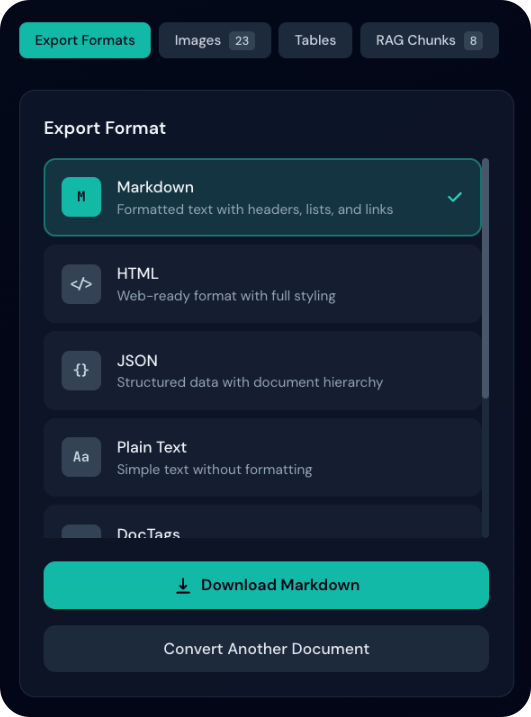
Preview
The export panel shows a live preview of your converted content that updates as you switch between export formats.
Format-Specific Preview
- Dynamic Content: Preview automatically loads content for the selected export format
- Format Badge: Shows which format you're currently previewing
- Content Caching: Previously loaded formats are cached for instant switching
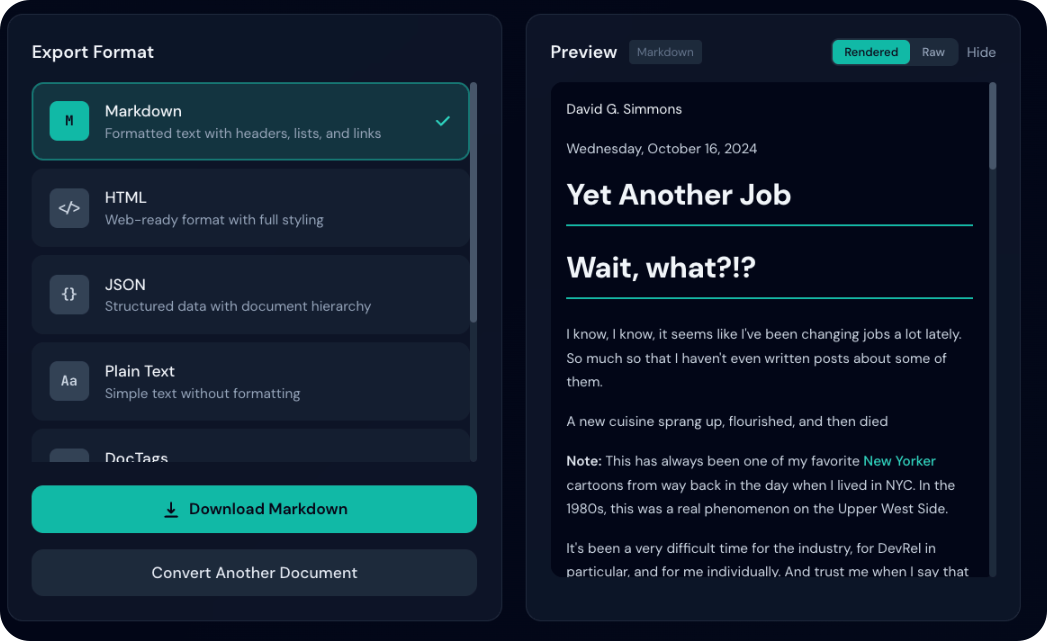
Rendered vs Raw Mode
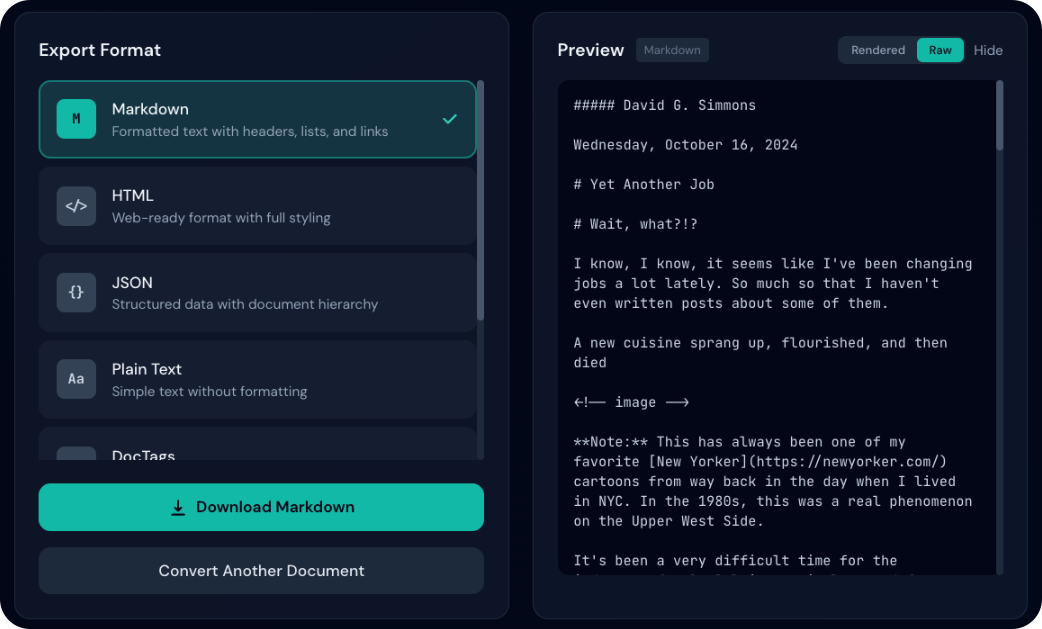
For HTML and Markdown formats, toggle between rendered and raw views:

- HTML: Displays formatted HTML with styling, tables, and links
- Markdown: Renders headers, bold/italic text, code blocks, and links
- Best for reviewing the final visual appearance
- Shows the actual source code/markup
- HTML: View raw HTML tags and attributes
- Markdown: View markdown syntax (# headers, bold, etc.)
- Useful for copying content or debugging formatting issues
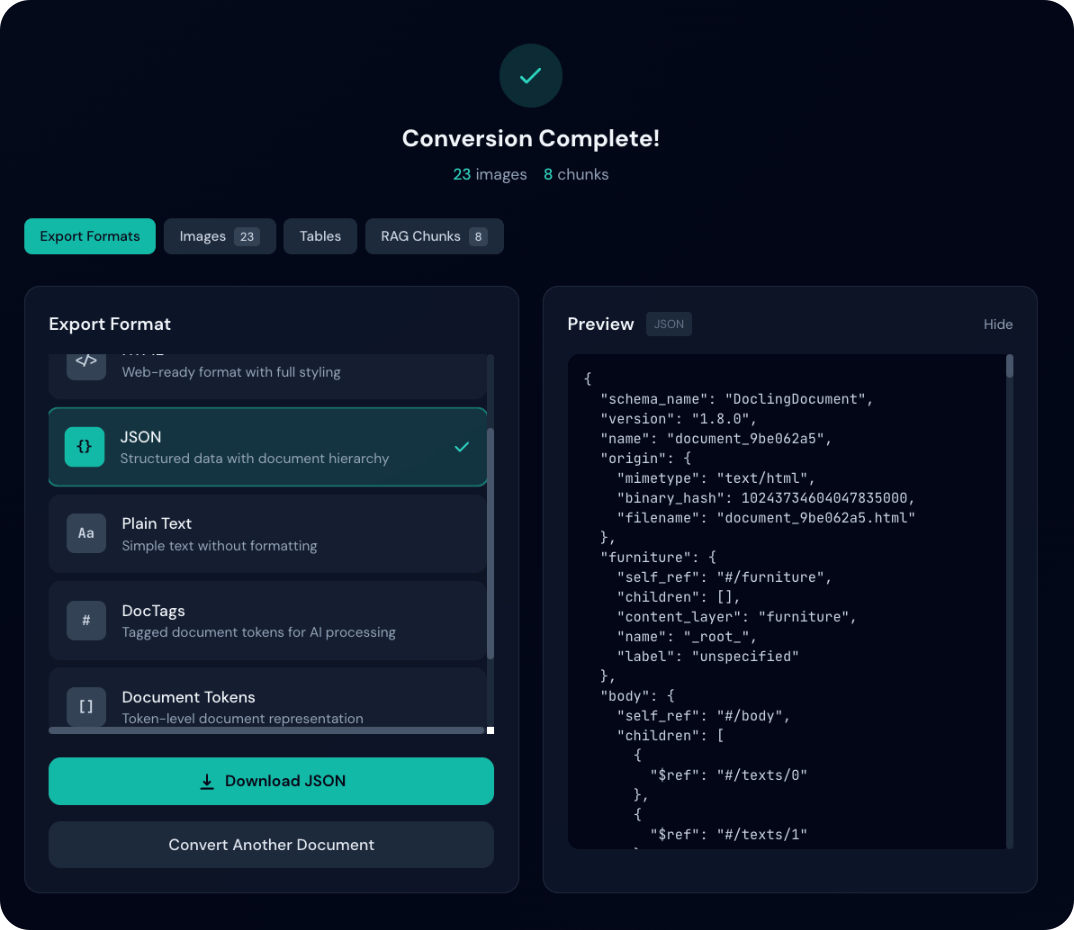
Other Formats
- JSON: Automatically pretty-printed with proper indentation
- Plain Text: Displayed as-is
- DocTags/Tokens: Raw format display
Conversion History
Access previously converted documents:
- View conversion status and metadata
- Re-download converted files
- Search history by filename
- View conversion statistics
History Features
- Search: Find documents by filename
- Filter: Filter by status (completed, failed)
- Export: Download history as JSON
- Reload Documents: Click on completed history entries to reload the converted document without re-conversion
- Documents are automatically stored on disk after conversion
- Full document structure is preserved and can be reloaded instantly
- Content deduplication: Same file with identical settings reuses stored output
- Generate Chunks Now: When no RAG chunks exist, generate them on demand using current chunking settings (no re-conversion needed)
- Conversions with matching file content and document-affecting settings (OCR, tables, images) complete instantly from cache
- Outputs are stored once in a content-addressed store and shared via symlinks
Statistics Panel
A dedicated slide-in panel for full conversion analytics. Open via the Statistics button in the header or the View full statistics link in the History panel.
Overview:
- Total conversions, success/failed counts, success rate
- Average processing time and queue depth
Storage usage:
- Uploads, outputs, and total storage
Breakdowns:
- Input formats, OCR backends, output formats
- Performance devices (CPU/CUDA/MPS), source types
- Error categories
- Chunking-enabled count
Extended metrics:
- System: Hardware type (CPU/CUDA/MPS), CPU count, current CPU usage (Duckling backend process), GPU info
- Throughput: Average pages/sec and pages/sec per CPU
- Conversion time distribution: Median, 95th, and 99th percentile
- Pages/sec over time: Chart showing throughput over conversion history
- Performance by config: Pages/sec and conversion time by hardware, OCR backend, and image classifier